Quick Start
Installing MNELAB
We recommend using the standalone installers for macOS and Windows:
If you use Arch Linux, you can install MNELAB from the AUR (e.g., yay -S python-mnelab).
Running MNELAB
If you installed MNELAB using a standalone installer, launch it like any other desktop application – either from your applications menu or by double-clicking the application icon.
Alternatively, you can use uv to run MNELAB directly without installing it (this works on all platforms, but for the best experience we recommend using the standalone installers when available):
To run the latest development version:
First Steps
The main MNELAB window is mostly empty when you first open it:
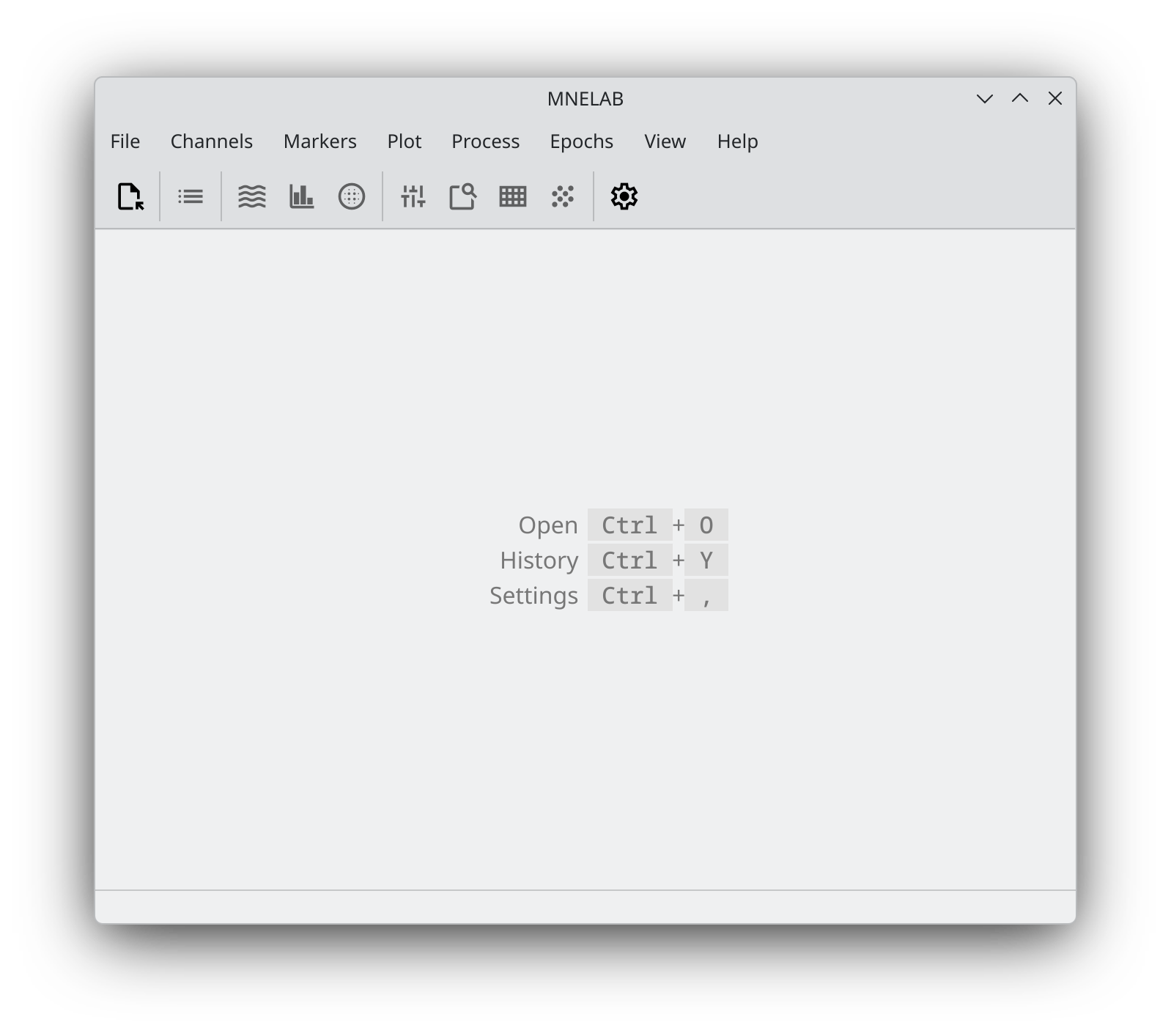
Most commands remain disabled until you load a data set. To load a data set, click the Open button in the toolbar or select File – Open… from the menu bar. The data set appears in the sidebar, and the info panel displays information about it (we use S001R06.edf from the EEG Motor Movement/Imagery Dataset in this example if you want to follow along):
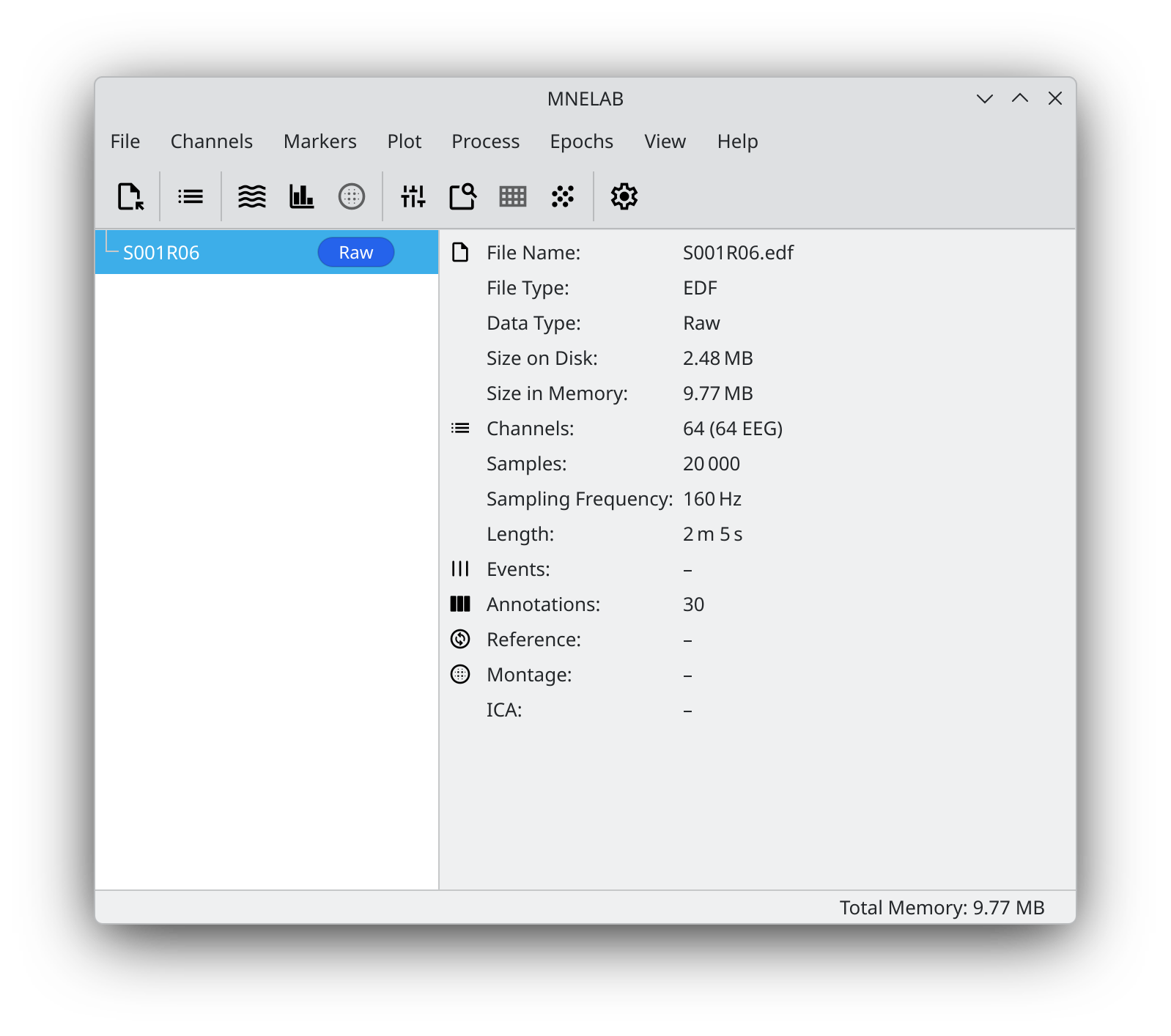
Now you can start exploring the data set, for example by visualizing the raw data with Plot – Plot Data, plotting the power spectral density with Plot – Plot PSD, or inspecting the annotations with Markers – Edit Annotations….